Table of contents
License
To obtain a license, you have to send your Hardware ID to an authorized ITDEVTECH reseller. Go to:
Customize > License
Copy your Hardware ID under System Hardware.
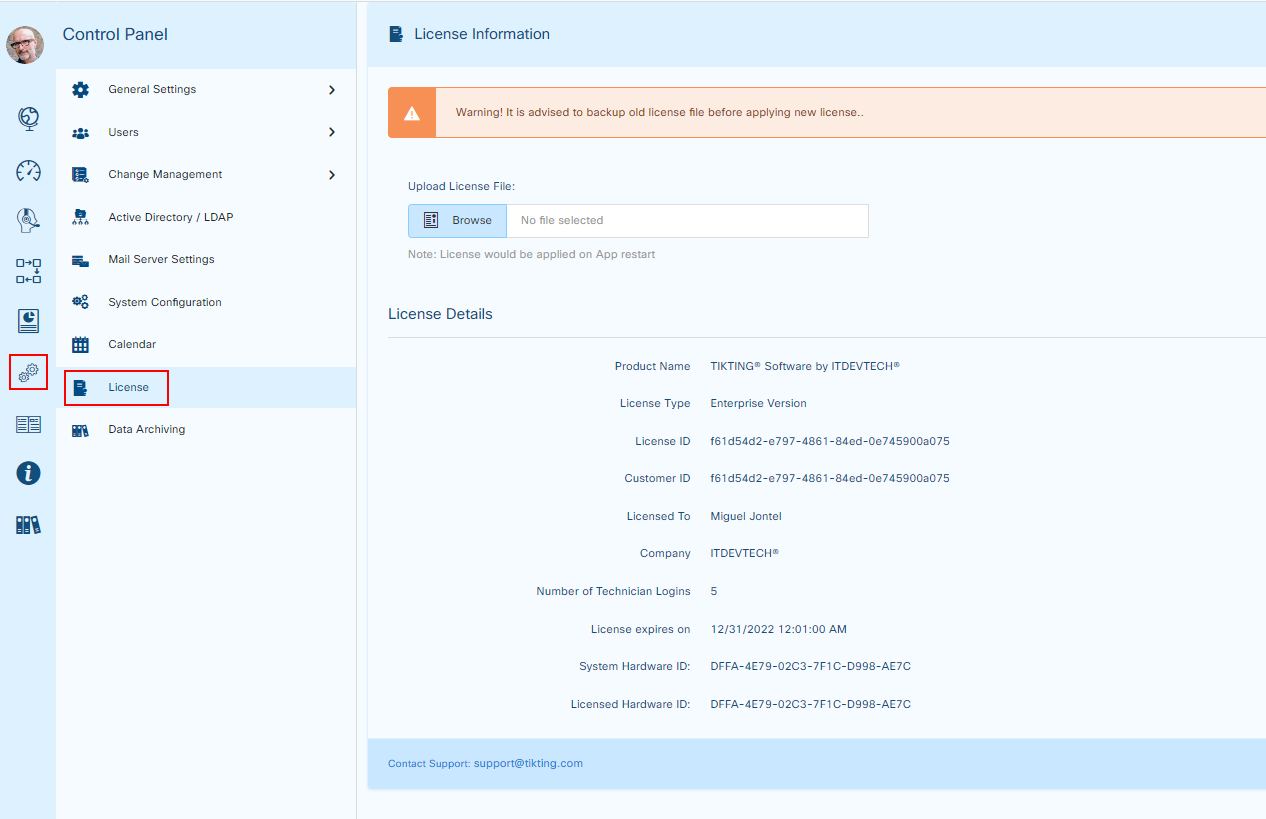
Update License
Step 1 - Backup Old License File
Take a backup of your license file. To do that, go to:
C:\inetpub\wwwroot\Tikting\license.license

Or Tikting Installation location chosen at the time of installation.
If you cannot find the license.license file, search for *.license in the folder and you will find the license file.
Copy this old license file to a secure place.
Step 2 - Upload License File
To update your license go to:
Customize > License > Upload License File
Press the browse button and upload the file.
Step 3 - Restart IIS
Open elevated Command Prompt (CMD) and enter the following:
iisreset /restart
Please wait for 5 - 10 minutes for IIS to restart, and then you can use your TIKTING - Enterprise Service Management System with the new license.