Table of contents
Reports
Reports are accessible to Administrators to review the use of the helpdesk and staff.
User Evaluation Reports
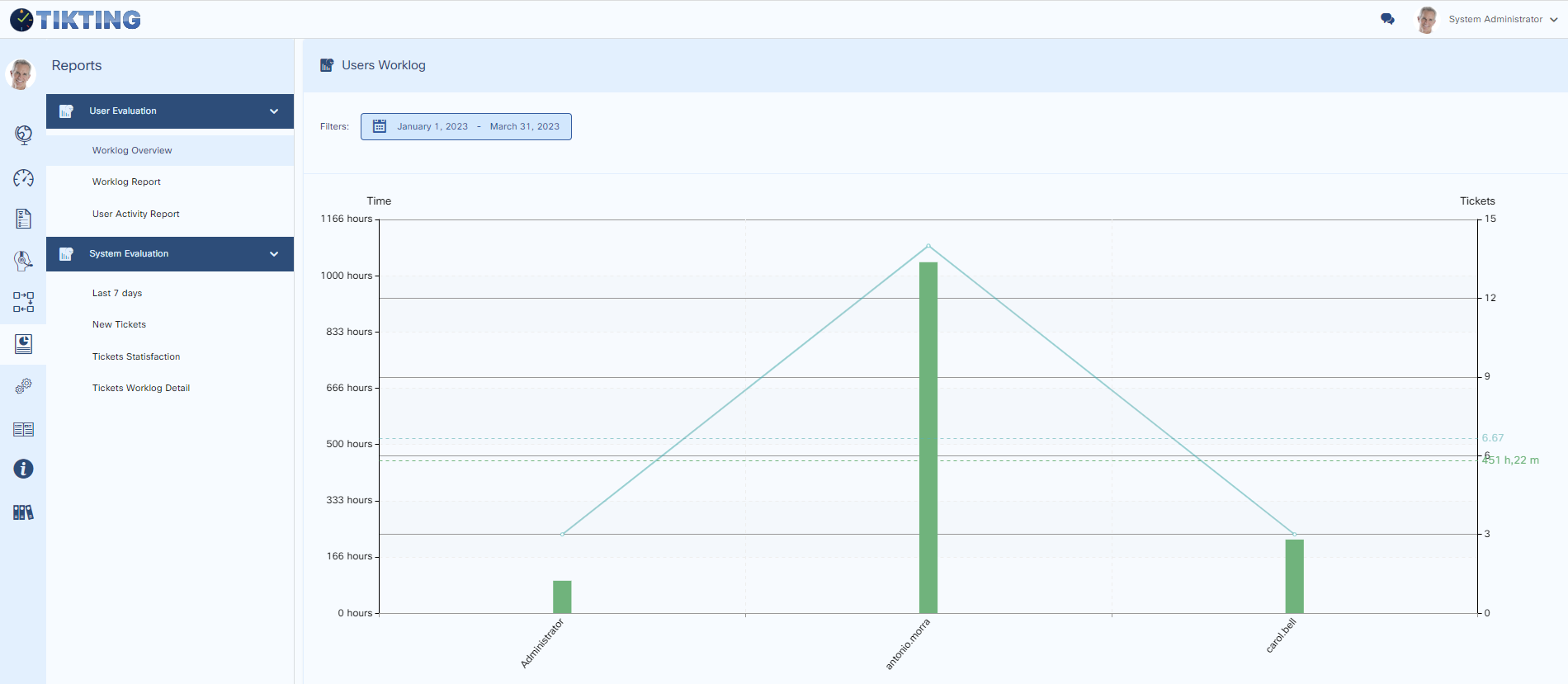
Worklog Overview
Report shows the total number of hours a technician has spent on a number of tickets.
Select a date range to run the report.
Worklog Report
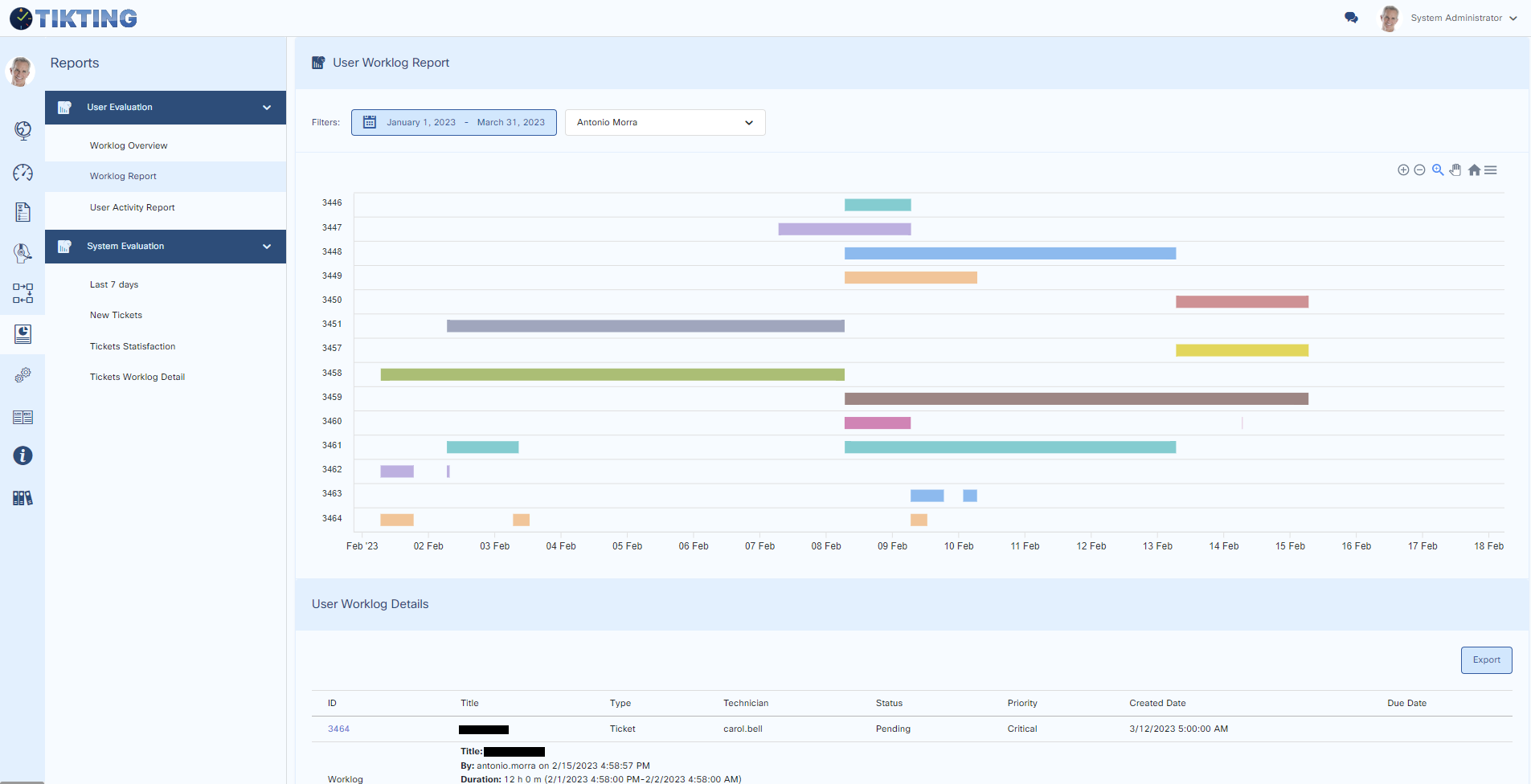
Report consists of two parts: Worklog Report and Worklog Details. Worklog Report (Details) shows the time taken by the technician to resolve tickets.
Select a technician and a date range to run the report.
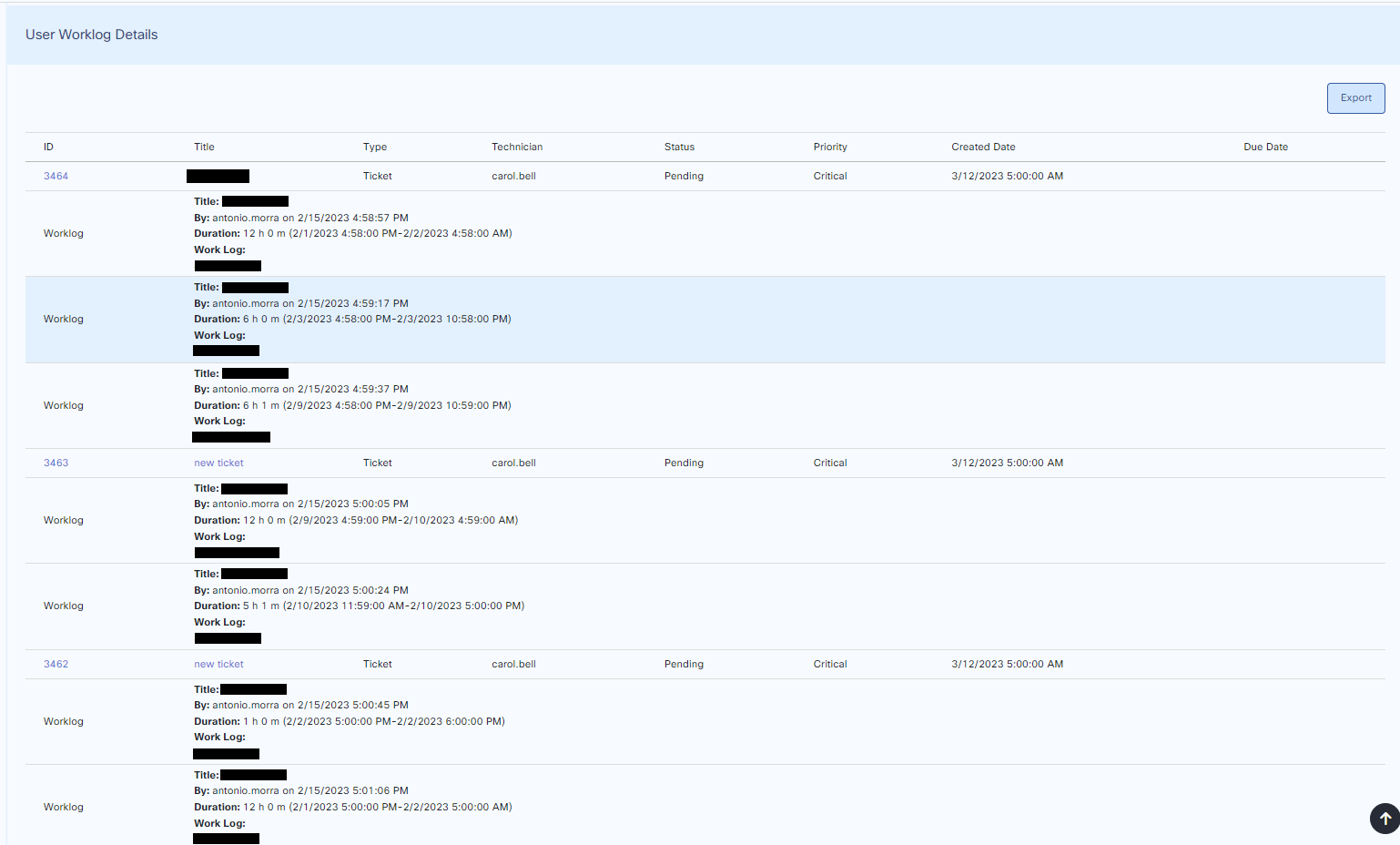
Worklog Report (Details)
On the same screen, details of each worklog are shown per ticket, including its duration and details.
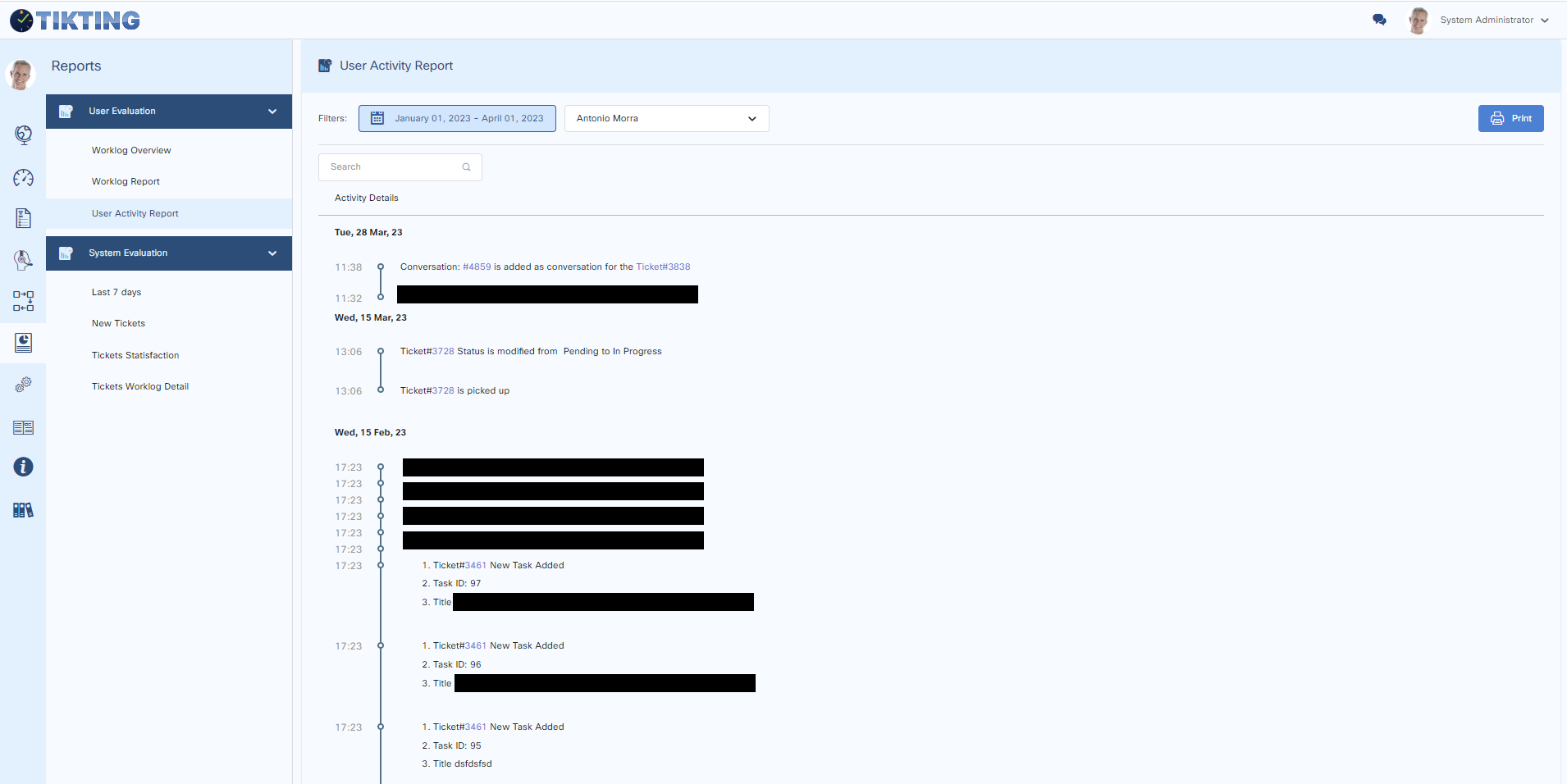
User Activity Report
Report shows each activity of a technician by ticket.
Select a date range and technician to run the report.
System Evaluation Reports
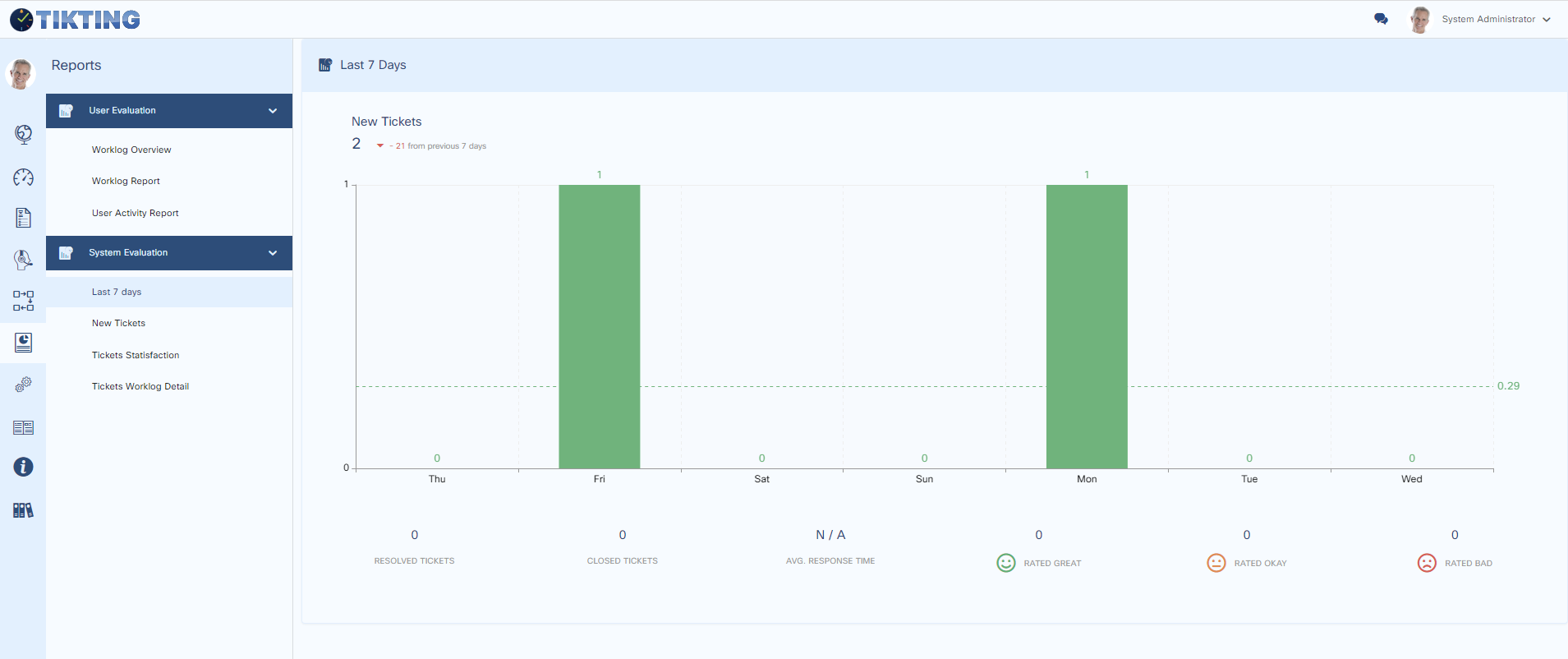
Last 7 Days
Report shows new tickets in the last 7 days along with key information like Resolved Tickets, Closed Tickets, Avg. Response Time and Ticket Ratings.
New Tickets
Report shows each activity of a technician by ticket.
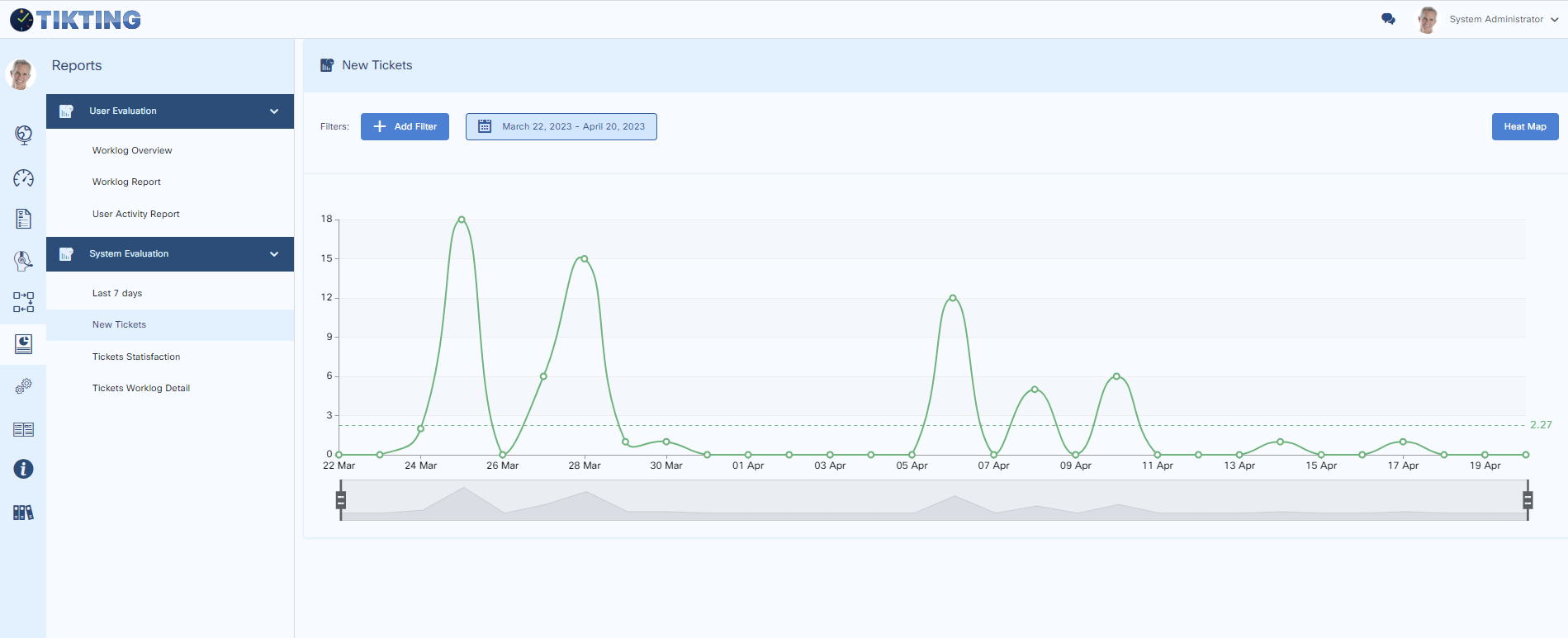
Date range and Priorities can be filtered.
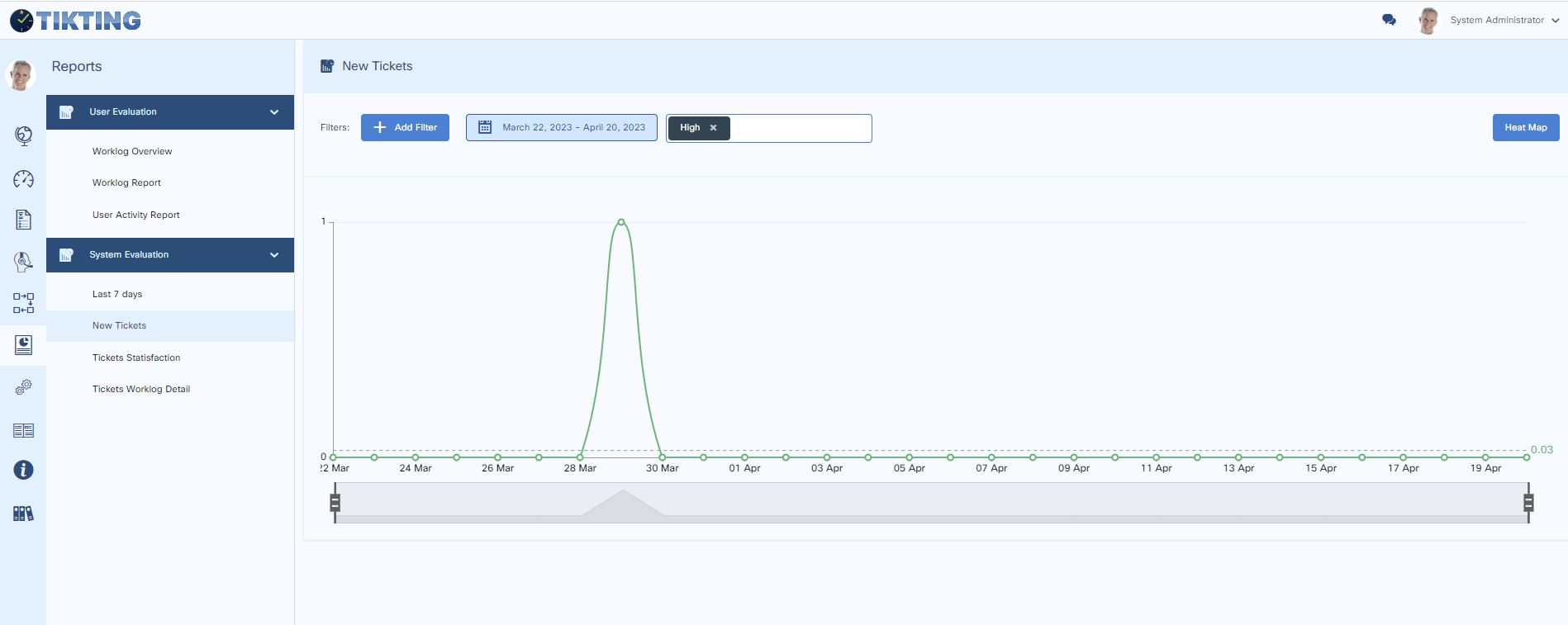
Technician can be filtered.
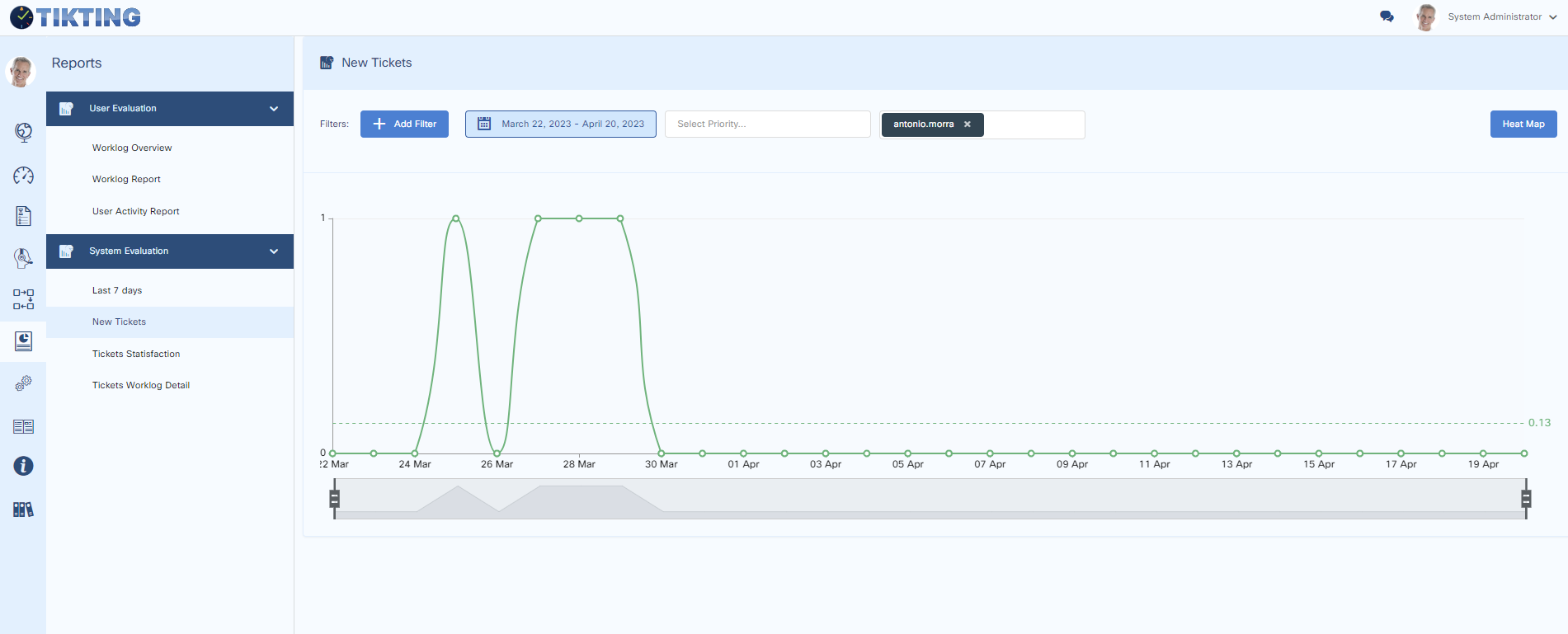
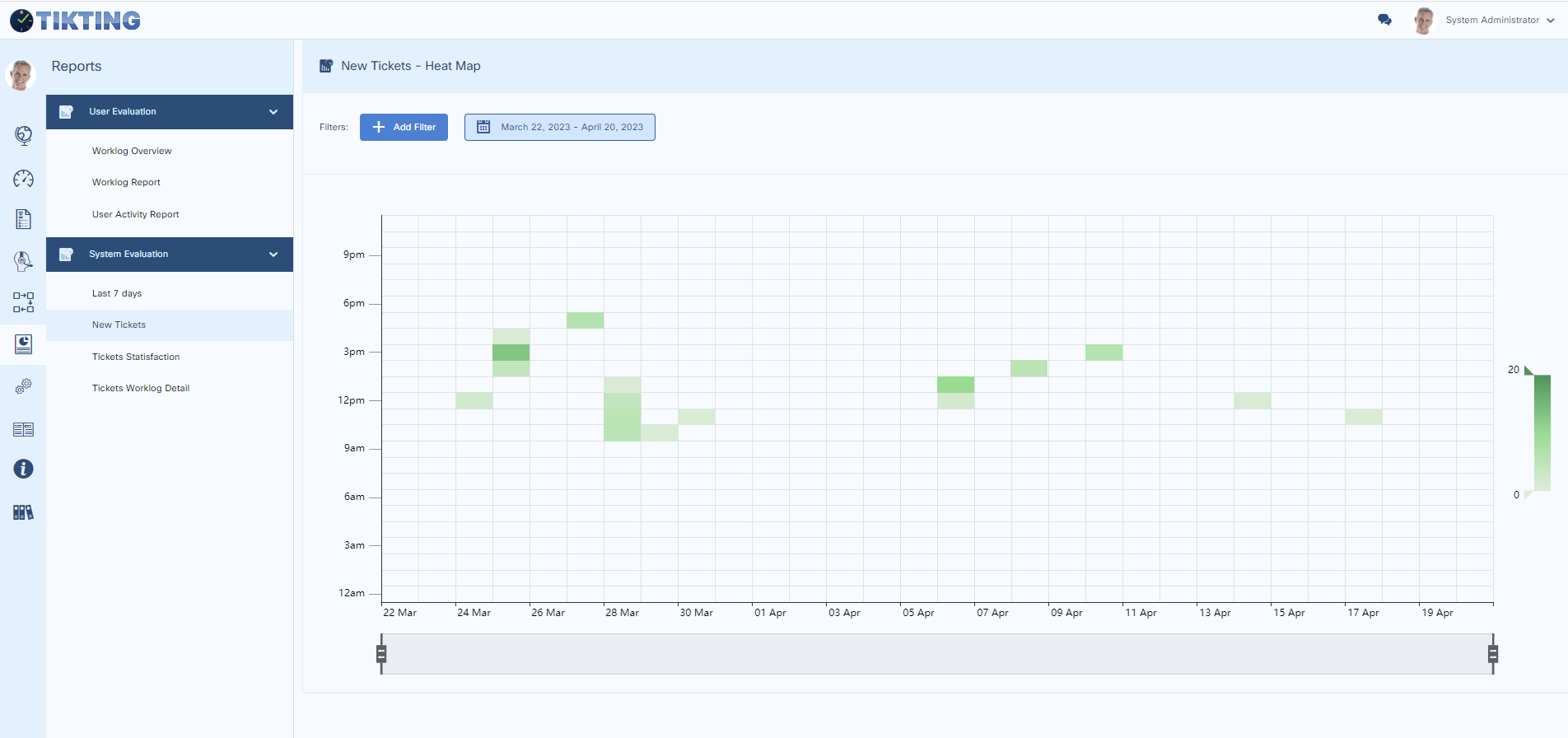
New tickets can be seen in a Heatmap format.
Tickets Satisfaction
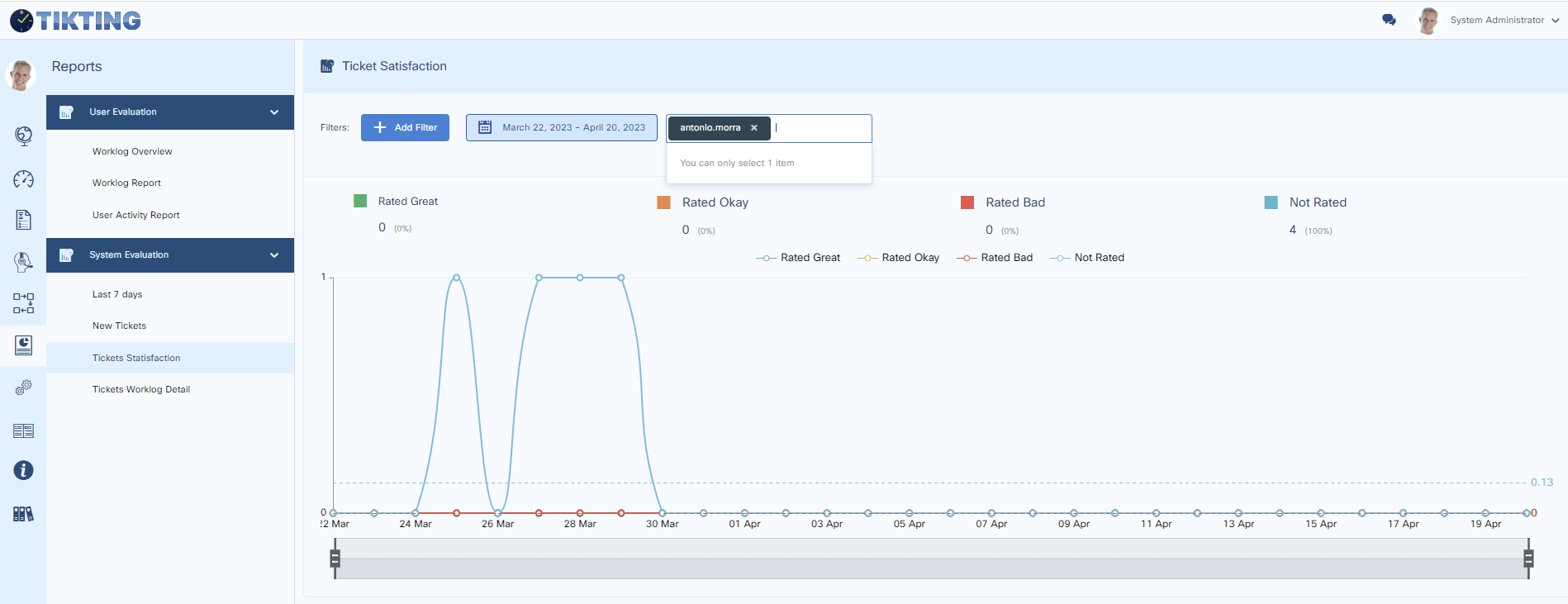
Report shows Ticket Satisfaction when feedback is provided.
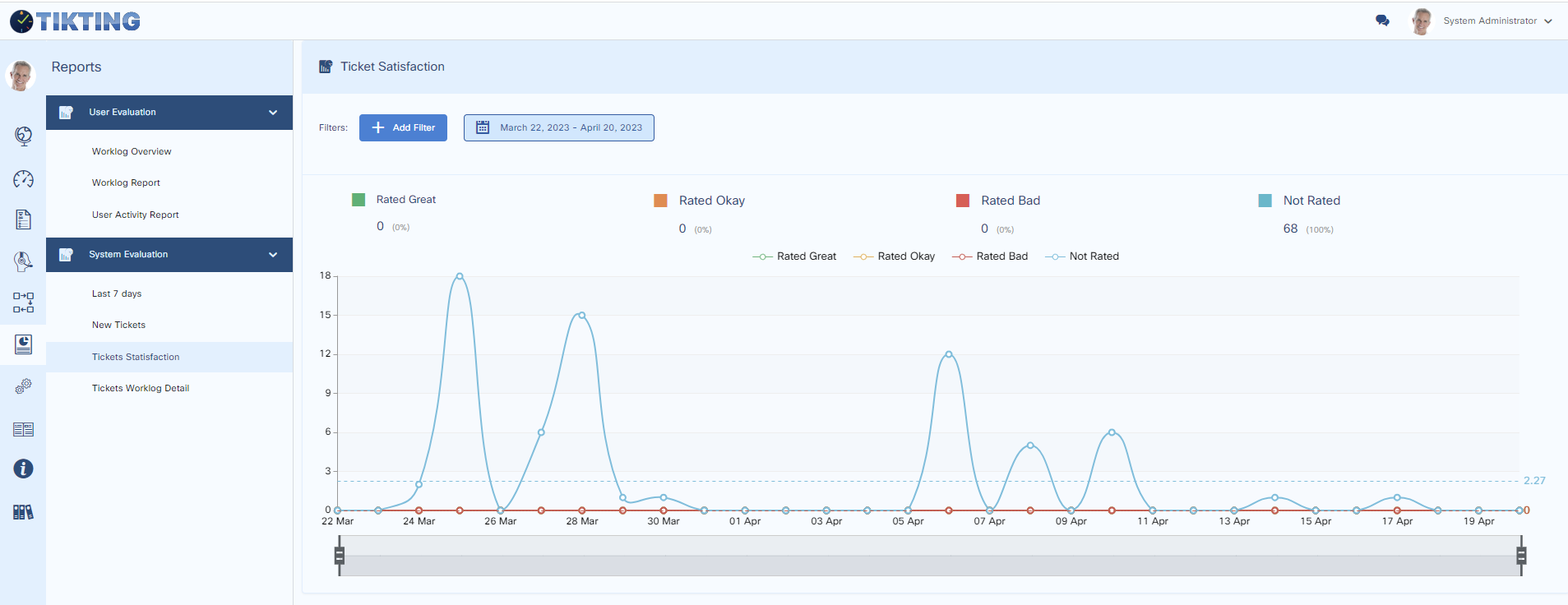
Date range and Priorities can be filtered.
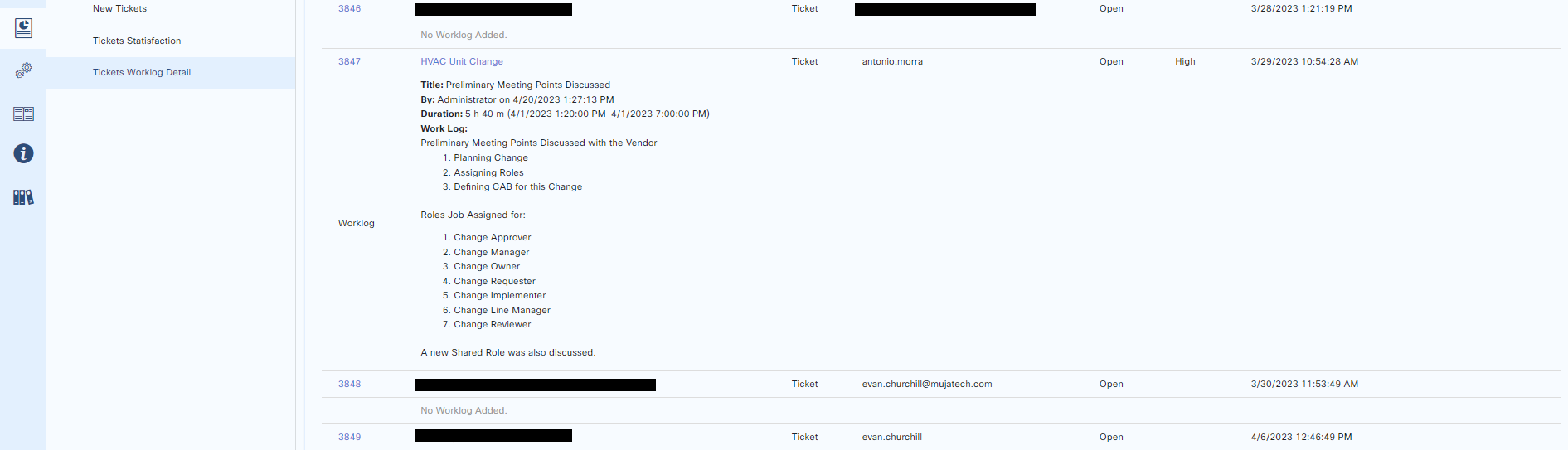
Ticket Worklog Details
Report shows ticket worklog details by ticket.
Select date range to run the report.
Other filters include Ticket Status and Priority.
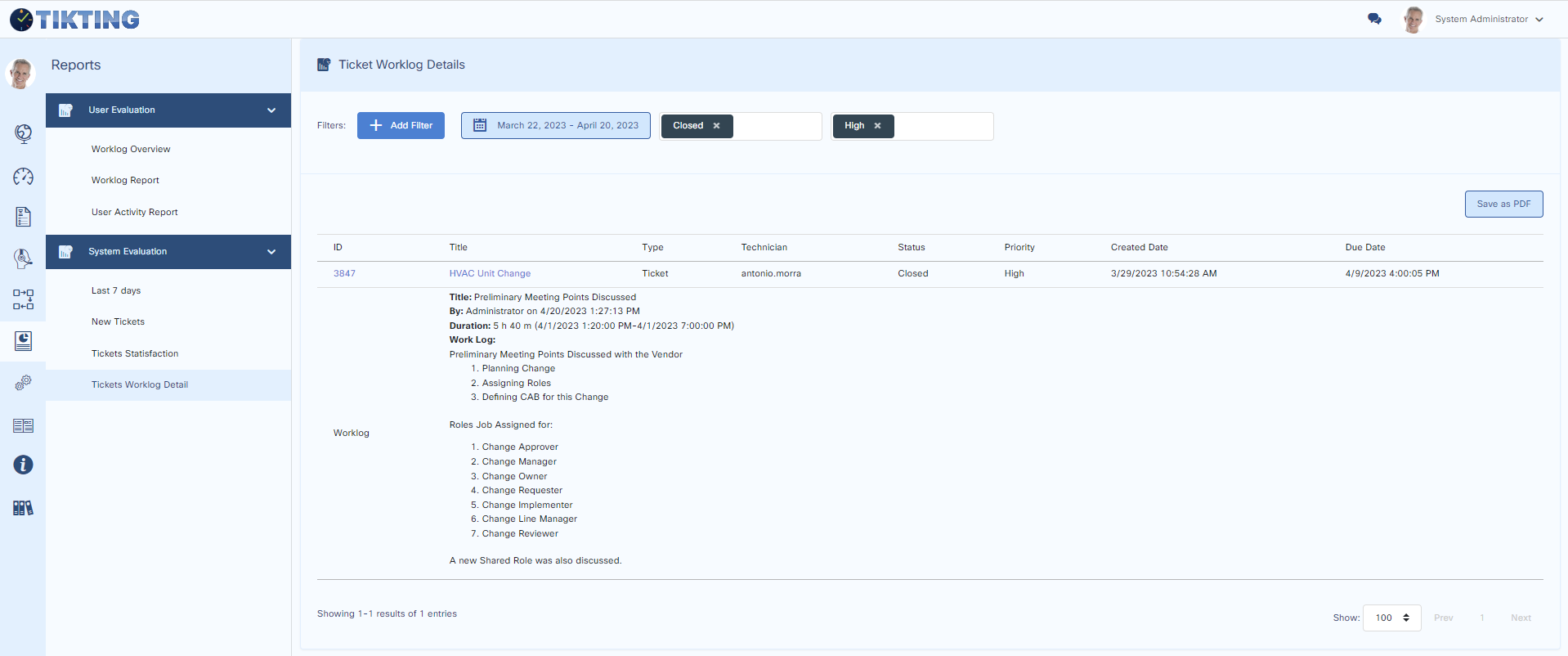
It also shows the detailed worklogs that Technicians have logged.