Update Guide
To update Tikting from one version to the latest, make sure that you do not need any intermediate updates.
Step 1 - Take SQL Database Backup
Take a fresh SQL Database backup. For that, go to SSMS (SQL Server Management Studio), choose your database and take a backup.
Step 2 - Stop IIS Website
Stop your IIS Website. For that, please go to:
Server Manager > Tools > IIS Manager
Choose your website and click stop.
Alternatively, open CMD with administrator privileges and execute
iisreset /stop
Step 3 - Uninstall Tikting
To Uninstall Tikting go to:
Control Panel > Program and Features
Uninstall Tikting from the list.
Go through the Uninstall wizard and press finish when done.
Step 4 - Install new version
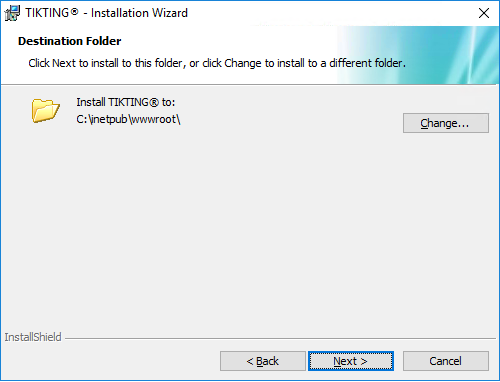
Run the Installer Package and proceed to the screen where it asks for the Destination Folder.
Tikting installs in the IIS root directory. If you have chosen a different target location for your IIS, or you run your IIS Clusters on a different server, please choose the appropriate directory and click next.
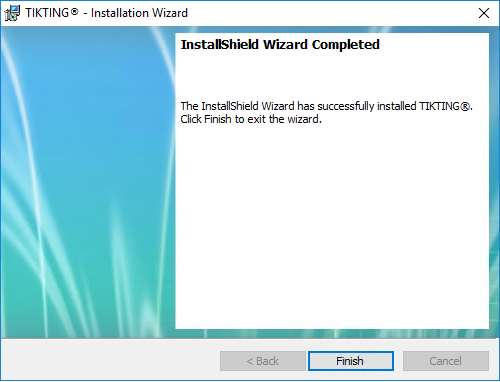
Please enter your Database server and login details as specified in the SQL Server Installation. Click next through the installation screens and finish the installer.
Step 5 - Restart IIS Website
Go to IIS Manager, choose Tikting website and press start.
Alternatively, open CMD with administrator privileges and execute
iisreset /restart